
Using Sonari
The shortcut
The default shortcut is ⌘⇧Space. You can change it to anything in Settings.
There are two ways to use it:
- Toggle mode (the default): press once to start recording, press again to stop and transcribe.
- Hold mode: hold the shortcut while you speak, and release to transcribe.
Pick whichever feels natural in Settings.
Trigger with the Globe (fn) key
You can set your trigger to the 🌐 (fn) key, the Globe key at the bottom-left of most Mac keyboards. In Settings → General, click the Trigger field and tap 🌐 instead of pressing a key combo — the field then shows 🌐. It's a single trigger, so choosing fn replaces the key combo, and recording a combo clears fn. It works in whichever mode you picked, toggle or hold.
The fn key isn't a standard modifier, so two things are worth setting up first:
- It needs Accessibility permission to fire while you're in another app, the same permission Sonari uses to paste. If you granted that for auto-paste, fn already works.
- macOS binds its own action to fn. Open System Settings → Keyboard and set "Press 🌐 to" to "Do Nothing", so the two don't fire at once.
See Troubleshooting if fn does nothing when you press it.
What you'll see
While you're recording, the notch expands to show a live waveform. When you stop, it switches to "Transcribing…", then names the transform that ran (Message…), so you can see which one fired. A moment later your text is pasted into the app you were already in.
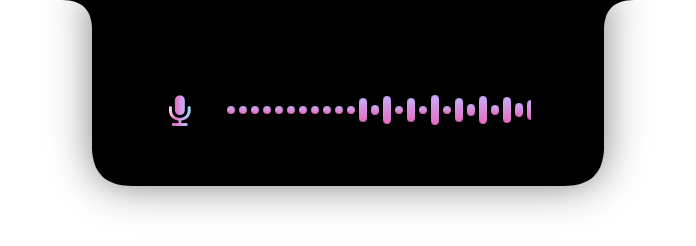
No notch on your Mac? The same HUD appears as a floating bar near the top of the screen instead.
You can also click the record button in the menu-bar panel instead of using the shortcut.
Where the text goes
By default, Sonari pastes the finished text into the focused app, the one your cursor was in. It works the same everywhere: Mail, Slack, a code editor, a terminal, a text field in the browser.
If you haven't granted Accessibility permission, Sonari can't paste for you, so it copies the text to your clipboard instead. Just press ⌘V. To switch to automatic pasting, grant Accessibility in Settings → Permissions. See Troubleshooting if paste isn't behaving.
Cleaning up and reshaping text
Every transcript runs through your custom dictionary and whichever AI transform is active (clean-up, email, list, and so on) before it lands. Both are optional and both run on your Mac.
You can also match a transform to the app you're dictating into, so the right one runs without you switching by hand.